How to Protect Your Laptop from Overheating: A Complete Guide
Introduction
Laptops have become essential tools for work, gaming, education, and entertainment. However, one common issue that affects laptop performance and lifespan is overheating. Excessive heat can slow down your system, cause unexpected shutdowns, damage internal components, and even shorten your laptop's overall lifespan.
Whether you're a student, professional, gamer, or casual user, understanding how to prevent laptop overheating is crucial. In this guide, we'll explore the causes of overheating, warning signs, and practical solutions to keep your laptop cool and running efficiently.
Why Does a Laptop Overheat?
A laptop generates heat whenever its processor (CPU), graphics card (GPU), memory, and storage devices are in use. Normally, cooling systems such as fans, heat sinks, and ventilation vents dissipate this heat.
However, overheating occurs when:
Airflow is restricted.
Dust accumulates inside the laptop.
Cooling fans become clogged or damaged.
The CPU or GPU is under heavy workload.
The laptop is used on soft surfaces.
Ambient room temperatures are too high.
When heat cannot escape effectively, internal temperatures rise, leading to performance issues and potential hardware damage.
Signs Your Laptop Is Overheating
Recognizing the symptoms early can help prevent serious damage.
Common Warning Signs:
Excessively hot keyboard or bottom panel
Loud and constantly running cooling fans
Frequent system crashes or freezes
Slow performance and lagging applications
Unexpected shutdowns or restarts
Battery draining faster than usual
Warning messages related to temperature
If you notice any of these signs, it's important to address the issue immediately.
Effective Ways to Protect Your Laptop from Overheating
1. Use Your Laptop on a Hard, Flat Surface
One of the most common causes of overheating is blocked air vents.
Avoid placing your laptop on:
Beds
Pillows
Blankets
Sofas
Cushions
These soft surfaces block airflow and trap heat.
Instead, use:
Desks
Tables
Laptop stands
Cooling pads
A hard surface allows proper ventilation and improves cooling efficiency.
2. Keep Air Vents Clean
Dust accumulation is a major contributor to overheating.
Over time, dust blocks vents and reduces airflow, forcing fans to work harder.
Cleaning Tips:
Turn off the laptop completely.
Use compressed air to clean vents.
Remove visible dust from fan openings.
Clean your laptop every 3–6 months.
Regular maintenance can significantly improve cooling performance.
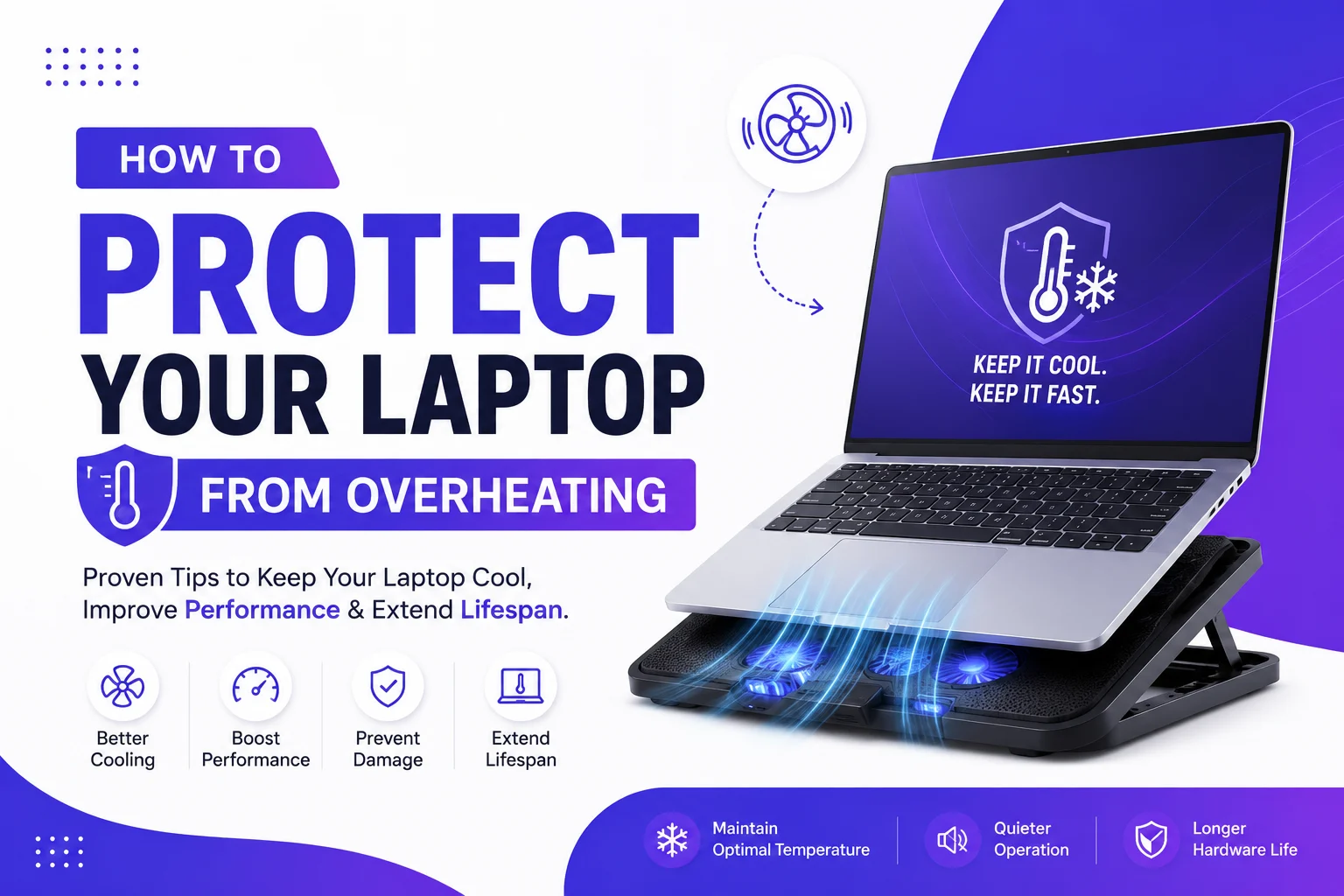
3. Invest in a Laptop Cooling Pad
Laptop cooling pads provide additional airflow through built-in fans.
Benefits include:
Lower operating temperatures
Improved gaming performance
Reduced fan strain
Better comfort during long work sessions
Cooling pads are especially useful for gaming laptops and high-performance workstations.
4. Avoid Direct Sunlight and Hot Environments
External temperatures can affect your laptop's cooling system.
Try to avoid using your laptop:
In direct sunlight
Inside parked vehicles
Near heaters
In poorly ventilated rooms
For optimal performance, use your laptop in a cool, well-ventilated environment.
5. Monitor CPU and GPU Temperatures
Monitoring software can help you identify overheating issues before they become serious.
Popular temperature monitoring tools include:
HWMonitor
Core Temp
MSI Afterburner
HWiNFO
Typical safe temperature ranges:
| Component | Normal Range |
|---|---|
| CPU | 40°C–80°C |
| GPU | 40°C–85°C |
Temperatures consistently above these levels may indicate cooling problems.
6. Close Unnecessary Applications
Running multiple programs simultaneously increases CPU and RAM usage, generating more heat.
To reduce system load:
Close unused browser tabs.
Exit background applications.
Disable unnecessary startup programs.
Use Task Manager to identify resource-heavy processes.
Reducing workload helps maintain lower operating temperatures.
7. Update Software and Drivers
Outdated drivers and software can cause excessive resource consumption.
Regularly update:
Operating system
Graphics drivers
BIOS firmware
Security software
Manufacturers often release updates that improve power management and thermal performance.
8. Adjust Power Settings
Using high-performance mode continuously can increase heat generation.
For everyday tasks:
Open Power Options.
Select Balanced or Power Saver mode.
Reduce screen brightness when possible.
These settings decrease power consumption and lower internal temperatures.
9. Replace Thermal Paste When Necessary
Thermal paste transfers heat from the CPU and GPU to the cooling system.
Over time, thermal paste can dry out and lose effectiveness.
Signs it may need replacement include:
Higher temperatures than usual
Fan constantly running at maximum speed
Sudden overheating despite clean vents
Replacing thermal paste can significantly improve heat dissipation, especially in older laptops.
10. Avoid Blocking Exhaust Vents
Many users unknowingly block the laptop's side or rear exhaust vents.
Ensure there is enough space around your laptop for hot air to escape.
A few inches of clearance can make a noticeable difference in cooling performance.
11. Limit Intensive Gaming and Heavy Workloads
High-performance tasks such as:
Gaming
Video editing
3D rendering
Software development
Cryptocurrency mining
generate substantial heat.
During extended sessions:
Take breaks.
Use cooling accessories.
Lower graphics settings when possible.
Monitor temperatures regularly.
This helps prevent thermal throttling and hardware stress.
12. Check the Cooling Fan Health
A faulty fan can quickly lead to overheating.
Warning signs of fan problems:
Grinding noises
Unusual rattling sounds
No fan noise during heavy usage
Consistently high temperatures
If you suspect fan failure, consult a technician or replace the fan promptly.
Long-Term Benefits of Preventing Laptop Overheating
Keeping your laptop cool offers several advantages:
Improved Performance
Lower temperatures help prevent thermal throttling, allowing your CPU and GPU to perform at their full potential.
Extended Hardware Lifespan
Heat is one of the biggest enemies of electronic components. Proper cooling reduces wear and tear.
Better Battery Health
Excessive heat accelerates battery degradation. Cooler temperatures help preserve battery capacity.
Reduced Repair Costs
Preventive maintenance can save you from costly motherboard, fan, or battery replacements.
Common Mistakes to Avoid
Many users unknowingly contribute to overheating.
Avoid these habits:
Using laptops on beds or couches
Ignoring dust buildup
Blocking ventilation openings
Running too many applications simultaneously
Skipping software updates
Leaving laptops in hot cars
Ignoring warning signs of overheating
Small changes in usage habits can dramatically improve cooling efficiency.
Conclusion
Laptop overheating is more than just an inconvenience—it can lead to reduced performance, system instability, and expensive hardware damage. Fortunately, most overheating issues can be prevented through proper maintenance, good ventilation, regular cleaning, and smart usage habits.
By keeping air vents clear, monitoring temperatures, managing workloads, and investing in cooling solutions when necessary, you can protect your laptop, improve performance, and extend its lifespan for years to come.
A cool laptop is a healthy laptop—and taking a few preventive measures today can save you significant time, money, and frustration in the future.